
Is UGC NET online or offline? Learn about CBT mode, exam interface, navigation tips, and preparation strategies for the computer-based test format. This article is written by Neeli Neelay Shah, Senior Legal Content Writer at LawSikho.
If you are planning to appear for UGC NET Exam, you probably have one burning question on your mind: is the exam conducted online or offline? The short answer is that UGC NET is an online examination conducted in Computer Based Test (CBT) mode. This guide will quickly walk you through everything you need to know about the CBT format, from what you will see on screen to how to prepare specifically for this digital exam mode.
Current Exam Mode Confirmed by NTA
The National Testing Agency (NTA) has confirmed that UGC NET 2025 will be conducted in Computer Based Test (CBT) mode only. Whether you are appearing for the June 2025 session or the December 2025 session, you will be taking the exam on a computer at a designated test centre. This has been the standard format since December 2018 when NTA took over the conduct of UGC NET from CBSE.
Now, you might have heard about UGC NET being conducted in offline OMR mode in June 2024. That was a one-time exception due to administrative reasons, and it created quite a bit of confusion among aspirants. However, NTA has made it clear that CBT mode has been restored for all sessions from December 2024 onwards. So if you are preparing for UGC NET 2025, you should focus entirely on the computer-based format and not worry about OMR sheets.

Understanding Computer Based Test (CBT) Format used in UGC NET
CBT stands for Computer Based Test, which simply means you will answer questions on a computer screen instead of marking bubbles on an OMR sheet. You sit at an individual computer terminal at the test centre, read questions displayed on the monitor, and select your answers by clicking on options using a mouse. Everything from viewing questions to submitting your final answers happens digitally.
The beauty of CBT mode is that it gives you flexibility that paper-based exams cannot offer. You can easily navigate between questions, change your answers as many times as you want before final submission, and mark questions for review if you want to come back to them later. The interface also shows you exactly how many questions you have attempted and how much time is remaining at any given moment.
CBT Exam Format: 150 Questions in 3 Hours
The UGC NET CBT exam consists of 150 multiple choice questions that you need to complete in a single 3-hour session without any break. Paper 1 has 50 questions worth 100 marks covering Teaching Aptitude, Research Aptitude, Logical Reasoning, and other general topics. Paper 2 has 100 questions worth 200 marks on your chosen subject.
Both papers appear in the same session, and you can switch between them at any time during the exam. There is no negative marking, so you are not penalised for wrong answers. Each correct answer gives you 2 marks, and the total marks are 300.
UGC NET 2025 CBT Interface: What You Will See on Screen
Understanding the CBT Screen Layout
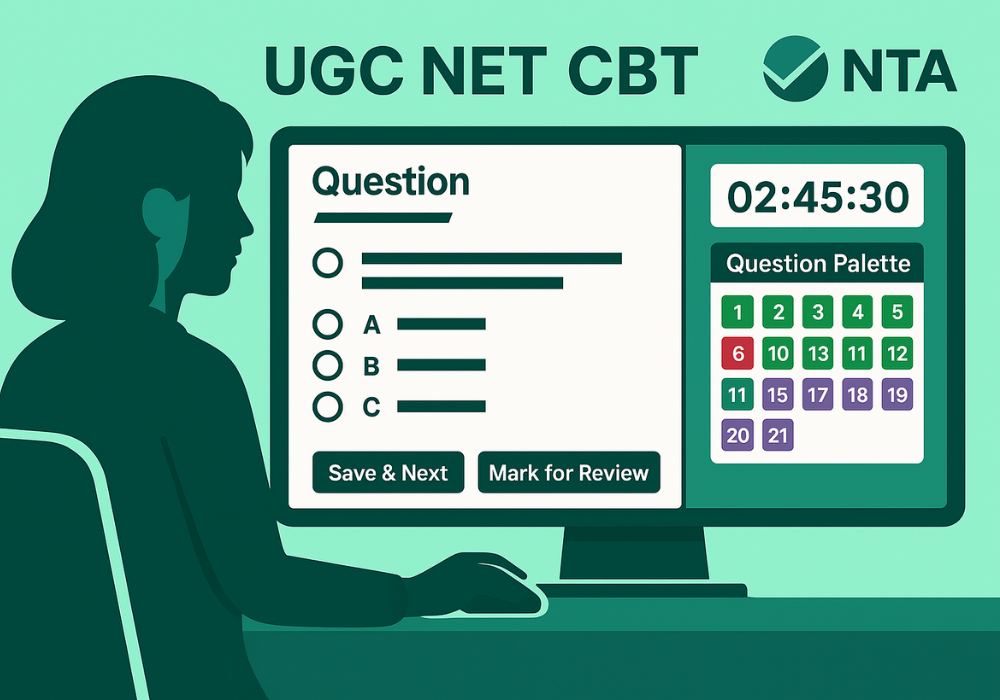
When you log in to the CBT system, your screen will be divided into distinct sections. The main area on the left displays the current question along with four answer options (A, B, C, D). You simply click on the option you want to select. If the question or options are lengthy, you can scroll down to read everything.
On the right side of the screen, you will see the Question Palette, which shows numbered boxes for all 150 questions. At the top right corner, there is a countdown timer that displays your remaining time. Navigation buttons appear at the bottom of the screen. Your name, photograph, and subject are displayed at the top to confirm you are logged into the correct session.
Question Palette and Colour Codes Explained
The Question Palette is your best friend during the exam because it gives you a bird’s eye view of your progress. Each question number is displayed in a small box, and the colour of the box tells you the status of that question.
Green means you have answered and saved the question. Red or white means you have not answered it yet. Purple indicates questions you have marked for review, meaning you want to come back to them later. Some interfaces show a combination colour for questions that are both answered and marked for review. By glancing at the palette, you can instantly see how many questions are done, how many are pending, and how many need another look.
Important Buttons You Must Know
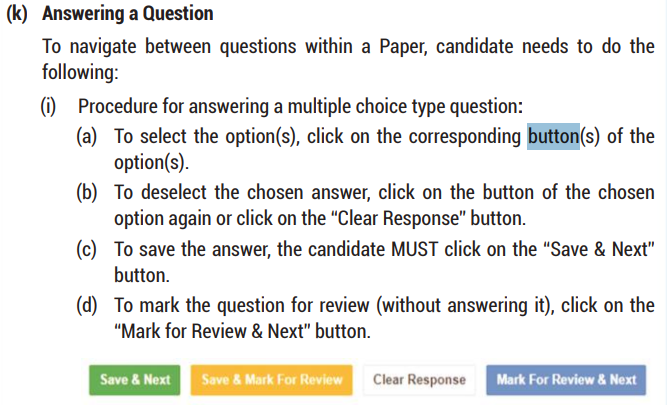
Save and Next
This is the button you will use most often. After selecting an answer, click “Save and Next” to save your response and move to the next question. Always remember to click this button before moving on, otherwise your selected answer might not be recorded.
Mark for Review and Next
Use this button when you are unsure about a question and want to revisit it later. It saves your current answer (if you have selected one) and flags the question with a special colour in the palette. You can easily find all marked questions later and give them another attempt.
Clear Response
If you want to remove your selected answer and leave the question unanswered, use the “Clear Response” button. This is useful when you initially pick an option but then decide you would rather not answer that question at all.
Submit Button
The Submit button ends your exam. Click it only when you are completely done and have reviewed all your answers. The system will ask for confirmation before final submission because once you submit, you cannot go back to make changes.

Moving Between Paper 1 and Paper 2
You will see tabs or sections for Paper 1 and Paper 2 in the interface. You can switch between them at any point during the exam. Paper 1 contains Questions 1 to 50, and Paper 2 contains Questions 51 to 150. Most candidates prefer finishing Paper 1 first before moving to Paper 2, but the choice is yours.
UGC NET Exam Day: What Happens at the Test Centre
Reporting Time and Entry Process
You need to reach the test centre at least two hours before your exam starts. For the morning shift (9:00 AM to 12:00 PM), reach by 7:00 AM. For the afternoon shift (3:00 PM to 6:00 PM), reach by 1:00 PM. The gates close 30 minutes before the exam begins, and latecomers are not allowed entry under any circumstances.
Carry your printed admit card and a valid photo ID such as Aadhaar, PAN card, Passport, or Voter ID. Also bring a passport-size photograph matching the one you uploaded during registration. You will not be allowed to enter without these documents.
Biometric Verification and Seat Allocation
At the centre, you will go through biometric verification where your fingerprint and photograph are captured and matched with your registration data. This confirms your identity and prevents impersonation. After verification, you will be directed to your assigned computer terminal. The seat number is mentioned on your admit card, and you must sit only at your designated terminal.
CBT Login and Starting Your Exam
Once you are seated, the invigilator will give you your login credentials. Enter your roll number and password carefully. After logging in, a screen will display your personal details and photograph for verification. Check that everything is correct before proceeding.
You will then see a set of instructions on screen. Read them carefully as they explain the exam pattern, navigation, and rules. The exam will not start until the scheduled time, and all candidates begin simultaneously when the countdown timer activates.
Using Rough Sheets During CBT Exam
Even though the exam is on computer, you will need rough paper for calculations, especially for Mathematical Reasoning and Data Interpretation questions in Paper 1. The centre provides rough sheets and a pen. Do all your rough work only on these sheets.
Important: You must return all rough sheets to the invigilator before leaving. Taking them outside is not allowed and can be treated as unfair means.
How to Prepare for UGC NET CBT Mode
Practice With NTA Official Mock Tests
NTA provides free mock tests on the official website ugcnet.nta.ac.in that simulate the exact CBT interface you will face on exam day. These mock tests are available for Paper 1 and various Paper 2 subjects. Attempting them is the single best way to get comfortable with the digital format before your actual exam.
Do not just attempt the mock test casually. Set aside three uninterrupted hours and treat it like the real exam. This will help you understand the interface, get familiar with navigation, and identify any challenges you might face with the CBT format.
CBT-Specific Preparation Tips
Improve Screen Reading Speed
Reading from a computer screen is different from reading printed text. Many candidates find their reading speed drops when they switch to screens. During your preparation, make it a habit to read study materials, previous year questions, and practice sets on a computer or tablet. This will train your eyes and brain to process information efficiently on digital displays.
Get Comfortable With Mouse Navigation
The CBT interface is entirely mouse-based. Practice clicking precisely on radio buttons and navigating quickly using the question palette. If you are not used to using a mouse for extended periods, your hand might get tired during the 3-hour exam. Regular practice will build your stamina and clicking accuracy.
Practice Under 3-Hour Timed Conditions
Attempting 150 questions in 180 minutes means you have just over one minute per question on average. This requires sustained concentration and efficient time management. Practice full-length mock tests in one sitting without breaks to build your mental endurance and develop a realistic sense of pacing.
Time Management Tips
Divide your time strategically between the two papers. A good approach is to spend about 50 to 60 minutes on Paper 1 (50 questions) and around 2 hours on Paper 2 (100 questions). During your first pass, attempt all questions you can answer quickly and mark difficult ones for review. Use the last 15 to 20 minutes to revisit marked questions and attempt any remaining ones.
The question palette is your time management dashboard. Keep glancing at it to track your progress. If you see too many red boxes with limited time left, you know you need to speed up. Since there is no negative marking, do not leave any question unanswered. Make educated guesses for questions you are unsure about rather than leaving them blank.
Common Problems During CBT Exam and Solutions
What If the Computer Stops Working?
Do not panic if your computer freezes, the screen goes blank, or the mouse stops responding. Raise your hand immediately and alert the invigilator. Do not try to fix the problem yourself or press random keys. Technical staff at every centre are trained to handle such situations quickly.
Your responses are automatically saved to the server at regular intervals, so even if there is a system failure, your already-submitted answers remain safe. If the issue cannot be resolved on your terminal, you may be shifted to a backup computer with your progress intact. You will also receive compensation time for any minutes lost due to technical problems.
Login Issues and Technical Glitches
If you face problems logging in or if the system does not accept your credentials, inform the invigilator immediately. Do not keep trying incorrect passwords as this might lock your account. The invigilator will verify your identity through your admit card and coordinate with the control room to reset your login or resolve the issue. Such problems are usually fixed within a few minutes.
Conclusion
UGC NET 2025 is conducted in online CBT mode, and understanding how the digital interface works is just as important as knowing your subject. The good news is that CBT mode actually offers several advantages: you can change answers freely, mark questions for review, and track your progress visually through the question palette. By practicing with NTA’s official mock tests and following the tips in this guide, you will walk into the exam centre feeling confident about navigating the CBT system. Focus on your preparation, familiarise yourself with the interface, and give your best on exam day.
For detailed information, visit this link.
 Serato DJ Crack 2025Serato DJ PRO Crack




 Allow notifications